Bookmark and Share

Let's Talk !!

:: Have you ever had problems with iPhone - iPod Touch App?
>> Should I purchase this application?
>> How do I use this application?
>> What are the 'MUST-HAVE' applications?
>> How can I optimize the function of my iPhone - iPod Touch?
>> ...etc...
APPS Talk ::. definitely gives answers to all these questions with iPhone - iPod Touch App Review, Information, Screenshot, Download, Tip and Trick, etc!!!
so, .... let's "APPS Talk ::."

Showing posts with label MUST-KNOW. Show all posts

March 22, 2010

Gift iPhone iPod Touch App to your friends - a new cool feature from App Store

"Gift this app" - a new feature from App Store - Now you can buy an app for your buddy


Today, App store allows all of the iPhone and iPod Touch users to buy an app and gift it to their friends directly. The new way to surprise your friends is buy them an app. How's surprising?. You can give them an app as the present of their important days e.g. birthday, anniversary day, etc. The method is just click on the drop down menu near the "Buy App" button in App Store and select the "Gift this App" menu. Then, you can send the paid app to one of your friend's accounts along with your personal message(that's cute).

app-gift-iphone-ipod-touch

Fill the form and complete the paying process. Don't forget to add a personal message for surprising.
app-as-gift-iphone-ipod-touch
SURPRISED!

..Read More >>

March 11, 2010

Share Internet PC to iPhone iPod Touch via WiFi called Adhoc[Vista/7]

Share Internet PC to iPhone iPod Touch viaWiFi called Adhoc[Vista/7]
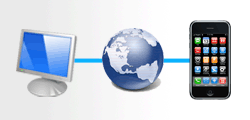
share-internet-pc-to-iphone-iPod-Touch-vistaIn my last post, I mentioned about make a connection between your PC/Laptop and the iPhone - iPod Touch for Windows XP to share the internet. More applications of this are still to come, so keep hanging around here!. Now, it's time for Vista and Windows 7. The methods are basically the same as those in the previous post, but there are some changes because of the interface. Here we go!.
Note: These steps take a bit of time, but you need to do this only the First time.

Preparations your PC/Laptop:
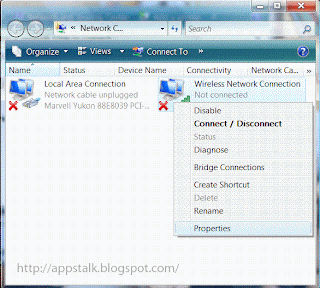
1. Go to Network Connections in Control panel, Right Click on Wireless Network Connection and Choose Properties.share-internet-pc-to-iphone-iPod-Touch-vista
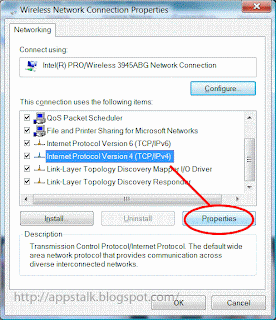
2. Open the Properties of Internet Protocol Version 4(TCP/IPv4)share-internet-pc-to-iphone-iPod-Touch-vista
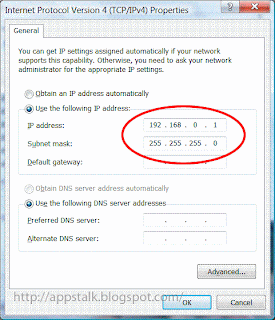
3. Put the IP address(192.168.0.1) and Subnet Mask(255.255.255.0) as follow, then click OKshare-internet-pc-to-iphone-iPod-Touch-vista
4. Open Wireless Network Connection and select 'Set up a connection or network'.share-internet-pc-to-iphone-iPod-Touch-vista
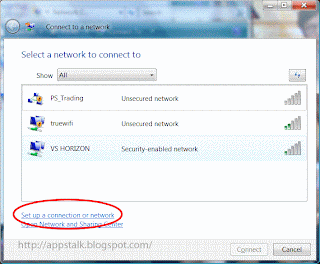
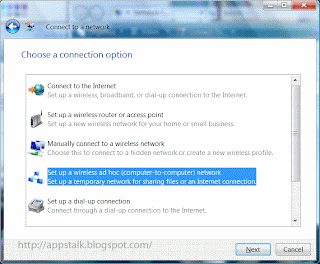
5. Choose 'Set up a wireless ad hoc (computer-to-computer) network', Click Next.share-internet-pc-to-iphone-iPod-Touch-vista
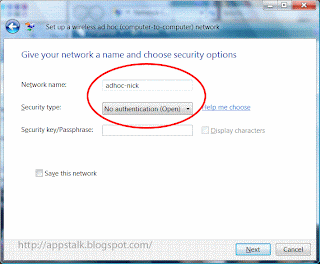
6. Add the Network name and choose 'No authentication (Open)' for Security type:'share-internet-pc-to-iphone-iPod-Touch-vista
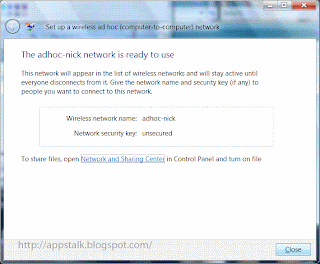
7. Click Close to finish setting up a adhoc network.share-internet-pc-to-iphone-iPod-Touch-vista
8. At Wireless Network Connection, you'll see your new network said Waiting for users to connect.share-internet-pc-to-iphone-iPod-Touch-vista
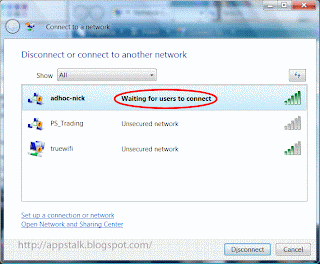
Next Part is to share your internet from you LAN
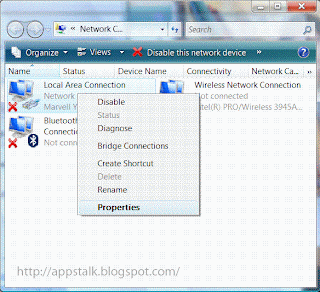
1. Right Click on Local Area Connection and choose Propertiesshare-internet-pc-to-iphone-iPod-Touch-vista
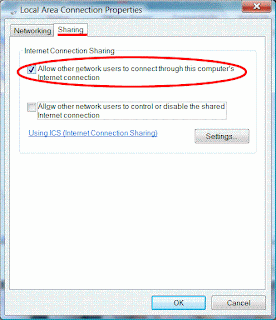
2. At Sharing tab, check the box said 'Allow other network users to connect through this computer's Internet connection', Click OK. Your internet is sharedshare-internet-pc-to-iphone-iPod-Touch-vista
Finish!!, now for your iPhone - iPod Touch
1. Tap Setting >> Wi-Fi.
2. You will see your new network that you've created, Tap it to connect.share-internet-pc-to-iphone-iPod-Touch-vista
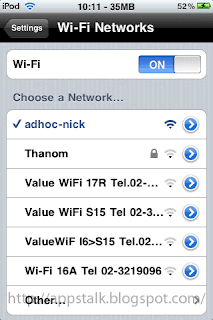
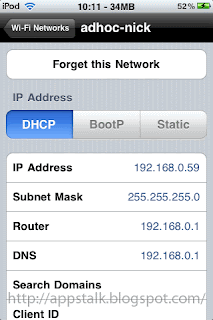
3. Tap the blue arrow, The screen shows information of your iPhone - iPod Touch connected to the WLANshare-internet-pc-to-iphone-iPod-Touch-vista
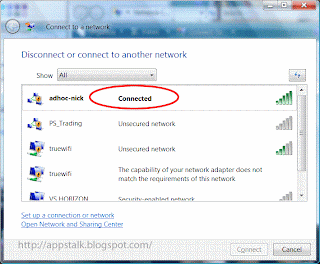
4. At Wireless Connection, the status has been changed to Connected.share-internet-pc-to-iphone-iPod-Touch-vista
5. The WiFi icon appears!. App Store or Safari can be launched now. IT WORKS!!share-internet-pc-to-iphone-iPod-Touch-vista


..Read More >>

March 10, 2010

Share Internet from PC to iPhone - iPod Touch via WiFi called Adhoc[WinXP]

Share your internet from PC's Lan to iPhone - iPod Touch via WiFi or adhoc (WinXP)
Share-Internet-from-PC-to-iPhone

What should you do when you are at home without wifi signal or access point?. Your iPhone - iPod Touch would have no way to connect to the internet(unless you use EDGE/GPRS, which may be costly). I've got a solution. Share your internet to iPhone - iPod Touch!!. But, how?. It's a piece of cake if your PC or Notebook has a WLAN function(built-in or external) Here are just few simple steps that let you connect your iPhone - iPod Touch to your Pc or laptop via WiFi. It not only allows your iPhone - iPod Touch to go online, but also enables other functions, such as that in the previous post: "Make your wireless mouse from iPhone - iPod Touch"

Preparations:
1. Go to Network Connections in Control panel, Right Click on Wireless Network Connection and Choose PropertiesShare-Internet-from-PC-to-iPhone
2. Open the Properties of Internet Protocol(TCP/IP)Share-Internet-from-PC-to-iPhone
3. Put the IP address and Subnet Mask as follow, then click OKShare-Internet-from-PC-to-iPhone
4. At tab Wireless Networks, Click Add.. Network.Share-Internet-from-PC-to-iPhone
5. Put your Network name(1. as you want) Network Authentication:(2. Open) and Data Encryption:(3. Disabled) , Click OKShare-Internet-from-PC-to-iPhone
6. Click Advanced, you can use any of 2 choices circled and tick Automatically connect to non-preferred networks. Click Close.Share-Internet-from-PC-to-iPhone
7. You will see your new wireless network (said Not Connected) in your Wireless Network ConnectionShare-Internet-from-PC-to-iPhone

Next Steps is to share your internet from your LAN:

1. At Network Connections, Right Click on Local Area Connection and choose PropertiesShare-Internet-from-PC-to-iPhone
2. Go to tab Advanced check on the Allow other network users to connect through this computer's Internet connection. Click close, you will see your Local Area Connection said Shared and Hand icon appeared.Share-Internet-from-PC-to-iPhone

Finish!!, now for your iPhone - iPod Touch:
1. Tap Setting >> Wi-Fi.
2. You will see your new network that you've created, Tap it to connect.Share-Internet-from-PC-to-iPhone
3. Tap the blue arrow, The screen shows information of your iPhone - iPod Touch connected to the WLAN.Share-Internet-from-PC-to-iPhone
4. At Wireless Network Connection the status has changed to ConnectedShare-Internet-from-PC-to-iPhone
5. The WiFi icon appeared!. You can launch Safari or App Store now!. IT WORKS!!Share-Internet-from-PC-to-iPhone

..Read More >>

March 9, 2010

Touch Mouse - Use your iPhone - iPod Touch as a wireless mouse and keyboard

Touch Mouse - Use your iPhone as a wireless mouse and keyboard

Touch Mouse - an application that turns your the iPhone or iPod Touch to a wireless touchpad and keyboard. No need to move your whole body if you want to change the volume while enjoy watching your movie. No need to rush back to click on mouse while you are standing in front of the class presenting your project. No need to pay for the expensive wireless mouse, use your phone instead!. See?, this is very convenient. It can be used in many aspects as said:
>> Remote Control for your Media player
>> Make a Presentation
>> Have fun with your friends
>>... whatever you want!
.... and this app is FREE!!.

Information:

make-iPhone-as-wireless-mouseTitle: Touch Mouse
Released: 12 January 2010
Version: 1.0
Size: 0.3 MB
Seller: Logitech Inc.

Installations:
For your Mac/PC
1. Download and install 'Logitech Touch Mouse Server' from http://www.logitech.com/index.cfm/494/6367&hub=1&cl=us,en?bit=&osid=9
make-iPhone-as-wireless-mouse
For your iPhone/iPod Touch
1. Install the Touch Mouse available at App Store
make-iPhone-as-wireless-mouse

How to use:
1. Connect your iPhone to your Mac/PC's lan (by Ad-Hoc WiFiXP VISTA and Windows 7)
2. Run the 'Logitech Touch Mouse Server'
make-iPhone-as-wireless-mouse

2. Open the 'Touch Mouse' application on iPhone/iPod Touch
make-iPhone-as-wireless-mouse
3. Enter your Mac/Pc's ip-address
make-iPhone-as-wireless-mouse
4. Status on Server is connected!
make-iPhone-as-wireless-mouse
5. Enjoy your wireless life!!
make-iPhone-as-wireless-mouse
Rating:

..Read More >>

Free Blog Counter